If you’re ready to get started, you can request a quote through my Hire Me page.
How to Get the Best Quality Photos for Editing and Restoration
Learn how to prepare your images for the best possible results
Scanning Physical Photos for the Best Results
Before You Start Scanning
When your image is a printed photograph, scanning it correctly is one of the most important steps in getting the best possible result. A high-quality scan captures far more detail than a photo taken with a phone.
Scanning Physical Photos for the Best Results
For the best results, follow these guidelines:
- Scan at 300–600 DPI (600 DPI is recommended for restoration work)
- Use a flatbed scanner rather than taking a picture with your phone
- Save your file as a high quality JPEG, PNG or TIFF
- Make sure the photo and scanner is clean and free from dust before scanning
- Scan the entire image, including edges and borders
Higher resolution scans allow for more detail to be recovered, especially in older or damaged photographs. This makes a big difference when restoring faded areas, repairing damage, or improving clarity.
You don’t have access to a scanner? You can still send a photo taken on your phone — but try to avoid glare, shadows, and reflections, and make sure the image is as clear and straight as possible. You may be able to take your photo to a photo or copy shop who may be able to scan it in for you for a small fee.
If you’re unsure how to scan your photo, feel free to ask — I’m happy to guide you
How to Get the Best Quality Photos for Editing with Digital Images
Is your image is already digital? Sending the highest quality version available will make a big difference to the final result. This is especially important when it comes to getting the best quality photos for editing, as compressed or low-resolution files can limit what’s possible.
Sending the Original File
For the best results, follow these guidelines:
- Send the original file from your phone or camera whenever possible
- Avoid screenshots or images downloaded from social media
- RAW files are ideal, but high-quality JPEGs also work well
- Avoid images that have been compressed (e.g. sent via WhatsApp or Facebook)
- Try not to crop the image before sending, as this can remove useful detail
Original files contain far more detail than compressed versions, allowing for sharper edits, better colour accuracy, and more natural results.
In some cases if your unsure whether your image is suitable, you can always send it over and I’ll advise you on the best approach before any work begins.
Images saved from social media are often heavily compressed, even if they look clear at first.
Not sure if your image is suitable? You can send it over through my contact form, and I’ll let you know what’s possible before any work begins.
What to Avoid When Sending Images
Even if your image has some of these issues, improvements can often still be made.
Content Outline:
- Blurry or out-of-focus images – even small blur makes editing and restoration harder.
- Low-resolution photos – tiny images limit detail recovery; always try to send the highest quality available.
- Damaged digital files – corrupted images, partial downloads, or incomplete files will delay work.
- Incorrect file formats – high quality JPEG, PNG, TIFF or RAW are ideal; avoid unusual or compressed formats.
- Excessive compression – images downloaded multiple times or compressed repeatedly lose quality.
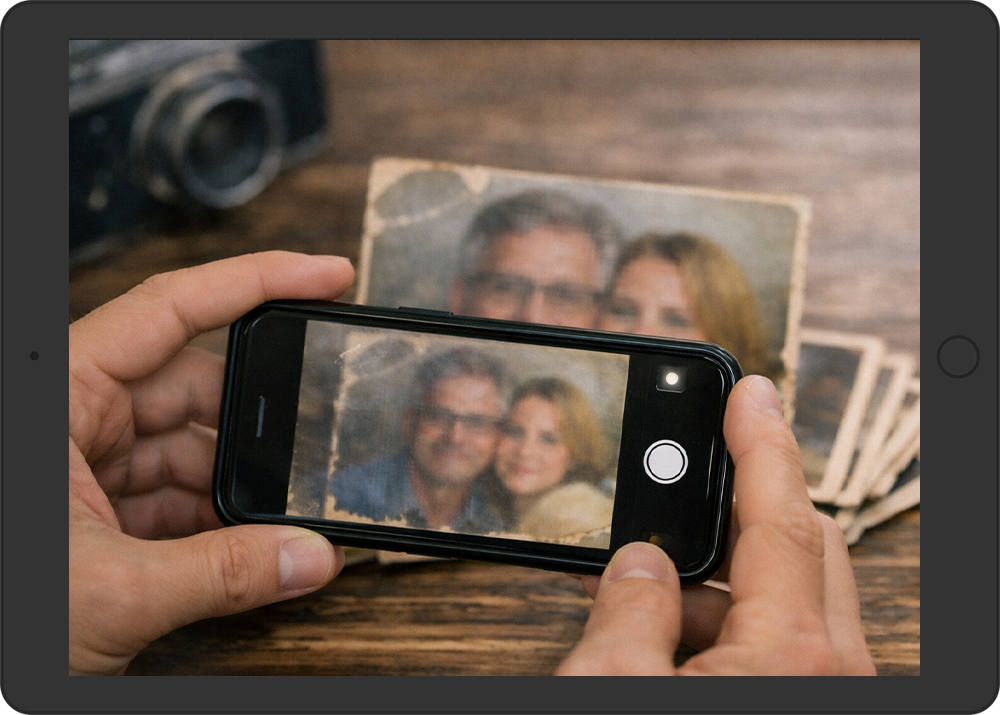
- Photos taken of printed photos – If scanning is possible, it’s much better to scan the image rather than photograph it. Scanning captures more detail, ensures even lighting, and avoids issues such as glare, distortion, or shadows, resulting in a higher-quality file for editing or restoration.
Pro Tip: The clearer your original image, the more we can achieve in editing or restoration. If you’re scanning old prints, choose the highest DPI your scanner allows and save as a TIFF or high-quality JPEG.
Why Image Quality Matters
The quality of the original image has a direct impact on the final result. Whether you’re having a photo restored or edited, the level of detail available determines how much can be improved.
Understanding how to get the best quality photos for editing helps ensure the strongest possible final result.
Higher-quality images allow for:
- Sharper and more detailed results
- More accurate colour correction
- Better restoration of damaged or faded areas
- More natural and realistic edits
Lower-quality images can still be improved, but there may be limitations depending on the condition of the original file. In some cases, missing detail cannot be fully recovered.
That’s why sending the best possible version of your image is so important — it gives the greatest flexibility during editing and helps achieve the best overall outcome.
Even the best editing cannot replace detail that isn’t there — but starting with a higher quality image gives the best possible result.
Quick Checklist Before Sending Your Image
Before submitting your image, take a moment to go through this quick checklist to make sure you’re sending the best possible version.
If you have any questions about the process, you can also check my FAQ page for more details.
Most issues with image quality come from screenshots or compressed files — sending the original makes a huge difference.
Taking a few extra moments to check these points can make a big difference to the final result.
If you’re unsure, you can always send your image and I’ll advise you on the best approach before any work begins.