
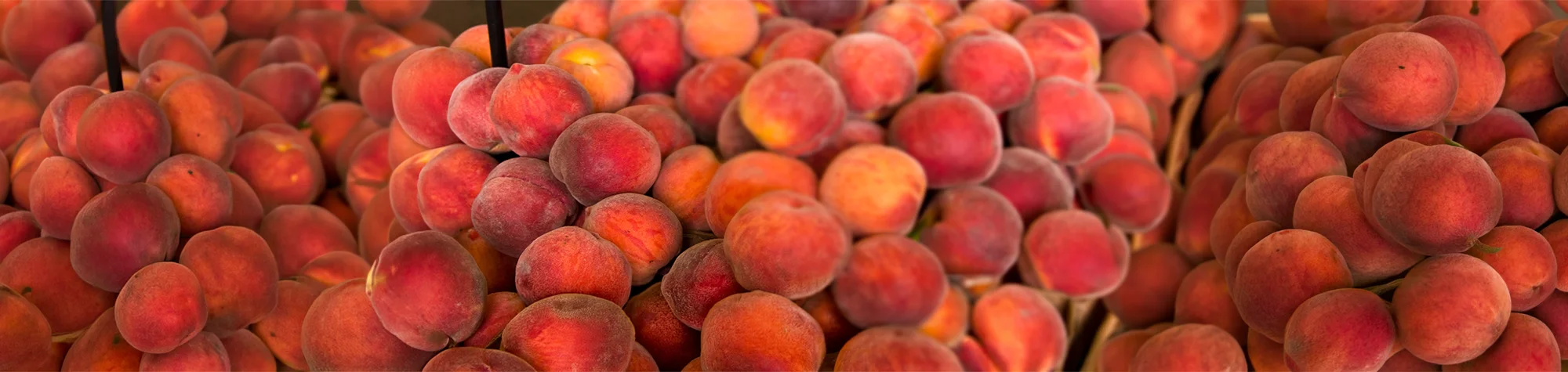
Create Fake Depth of Field in Photoshop
Depth of field plays a huge role in professional photography, helping draw attention to the main subject while softly blurring the background. If you didn’t capture this effect in camera, Photoshop makes it easy to recreate it later.
In this tutorial, you’ll learn how to create a fake depth of field effect in Photoshop. You’ll discover how to make objects closer to the camera appear sharp and larger, while gradually blurring areas further away to create a realistic sense of distance and depth.
Watch the Fake Depth of Field Photoshop Tutorial
Watch the full tutorial below to see how to create a realistic depth of field effect step by step in Photoshop.
What You’ll Learn in This Tutorial
In this lesson, you will learn how to:
-
Create a fake depth of field effect in Photoshop
-
Gradually blur background areas for realism
-
Control blur strength and focus distance
-
Add depth to flat-looking images
-
Improve composition using selective focus
Who This Tutorial Is For
This tutorial is perfect for:
-
Photoshop beginners
-
Photographers
-
Photo editors and retouchers
-
Anyone wanting cinematic image effects
Where You Can Use This Effect
Fake depth of field works great for:
-
Portrait photography
-
Landscape images
-
Product photos
-
Social media visuals
-
Creative photo manipulations
Professional Photoshop Editing Services
If you want professional depth of field effects or advanced photo retouching applied to your images, I offer Photoshop editing services for individuals and businesses.
Attribution and Licensing
Creative Commons CC BY 2.0/Liz West: https://www.flickr.com/photos/calliope/4913425862/sizes/l
End Music: Wallpaper Kevin MacLeod (incompetech.com). Licensed under Creative Commons: By Attribution 3.0 License http://creativecommons.org/licenses/by/3.0/
Subscribe for More Photoshop Tutorials
Subscribe to my YouTube channel for more Photoshop tutorials, photo effects, and professional editing tips.