Make Someone Look Younger in Photoshop
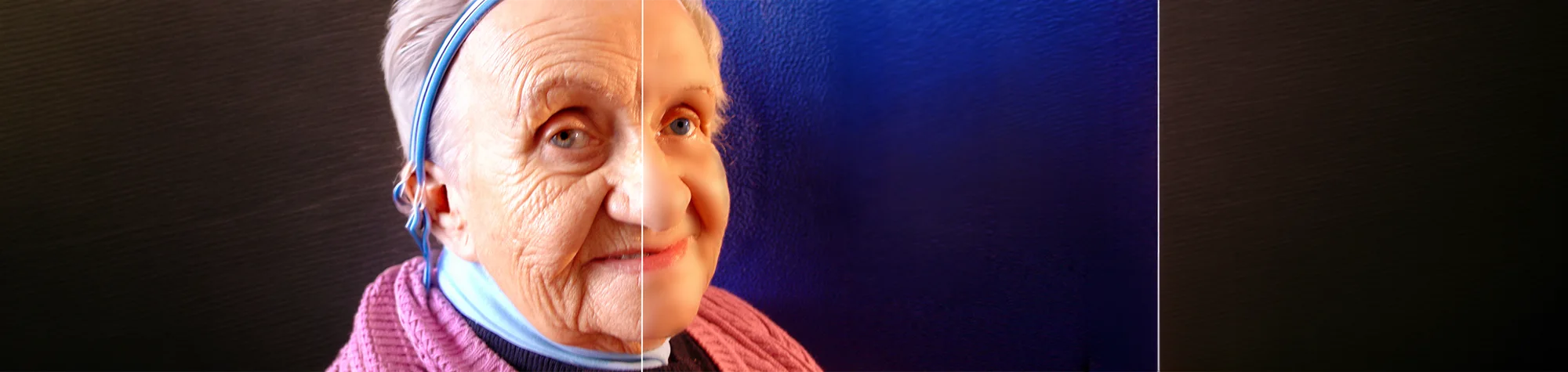
In this tutorial, you’ll learn how to make someone look younger in Adobe Photoshop using simple and effective retouching techniques.
You’ll discover how to soften skin, reduce the appearance of wrinkles, and enhance facial features while keeping the image natural and realistic. This method works on most portraits and avoids the overly airbrushed look that can ruin a photo.
You can apply this effect to family portraits, professional headshots, and personal photos to give them a fresh, youthful appearance.
Watch the Make Someone Look Younger Photoshop Tutorial
Watch the full tutorial below to see how to make someone look younger in Photoshop step by step.
What You’ll Learn in This Tutorial
In this tutorial, you will learn how to:
-
Make someone look younger in Photoshop
-
Smooth skin while keeping texture
-
Reduce wrinkles and fine lines naturally
-
Enhance facial features subtly
-
Avoid over-retouching portraits
Who This Tutorial Is For
This tutorial is perfect for:
-
Photoshop beginners
-
Portrait photographers
-
Photo retouchers
-
Anyone editing portraits
-
Users wanting natural retouching results
Where You Can Use This Effect
This youthful retouching effect works great for:
-
Portrait photography
-
Family photos
-
Professional headshots
-
Personal image editing
-
Social media profile photos
Professional Photoshop Editing Services
If you’d like professional portrait retouching or age-reduction edits done for you, I offer Photoshop editing services for individuals and businesses.
Attribution and Licensing
Images are used under the SXC License
Background Music: Sovereign Kevin MacLeod (incompetech.com). Licensed under Creative Commons: By Attribution 3.0 License http://creativecommons.org/licenses/by/3.0/
Subscribe for More Photoshop Tutorials
Subscribe to my YouTube channel for more Photoshop tutorials, portrait retouching tips, and professional editing techniques.