
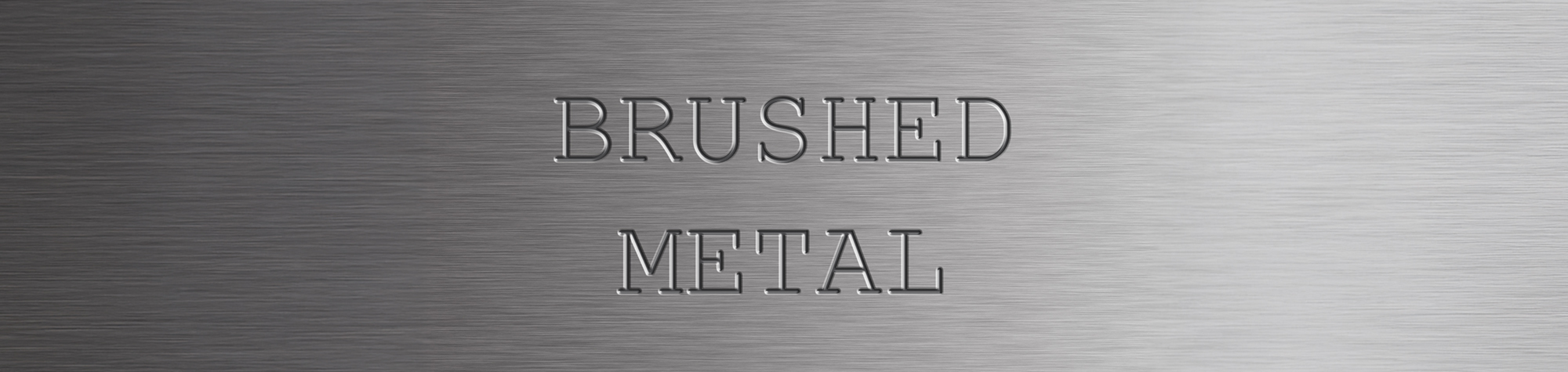
Brushed Metal Effect in Photoshop
In this tutorial, you’ll learn how to create a realistic brushed metal effect in Adobe Photoshop.
This effect works perfectly for adding industrial-style textures to images, text, logos, and design projects. Once you understand the technique, you can easily adjust the direction, strength, and finish of the metal to suit your own designs.
The process is simple, flexible, and works on most images.
Watch the Brushed Metal Photoshop Tutorial
Watch the full tutorial below to see how to create a brushed metal texture step by step.
What You’ll Learn in This Tutorial
In this tutorial, you will learn how to:
-
Create a brushed metal effect in Photoshop
-
Build realistic metal textures
-
Control direction and grain of the metal
-
Apply the effect to images, text, and designs
-
Adjust brightness and contrast for realism
Who This Tutorial Is For
This tutorial is perfect for:
-
Photoshop beginners
-
Graphic designers
-
Logo designers
-
Digital artists
-
Anyone creating texture-based designs
Where You Can Use This Effect
The brushed metal effect works great for:
-
Logos and branding
-
Text effects
-
Website graphics
-
Posters and flyers
-
Digital and print designs
Professional Photoshop Editing Services
If you need custom textures, professional design work, or advanced Photoshop editing, I offer Photoshop editing services for individuals and businesses.
Attribution and Licensing
Background Music: Sovereign Kevin MacLeod (incompetech.com). Licensed under Creative Commons: By Attribution 3.0 License http://creativecommons.org/licenses/by/3.0/
Subscribe for More Photoshop Tutorials
Subscribe to my YouTube channel for more Photoshop tutorials, texture effects, and professional photo editing tips.