
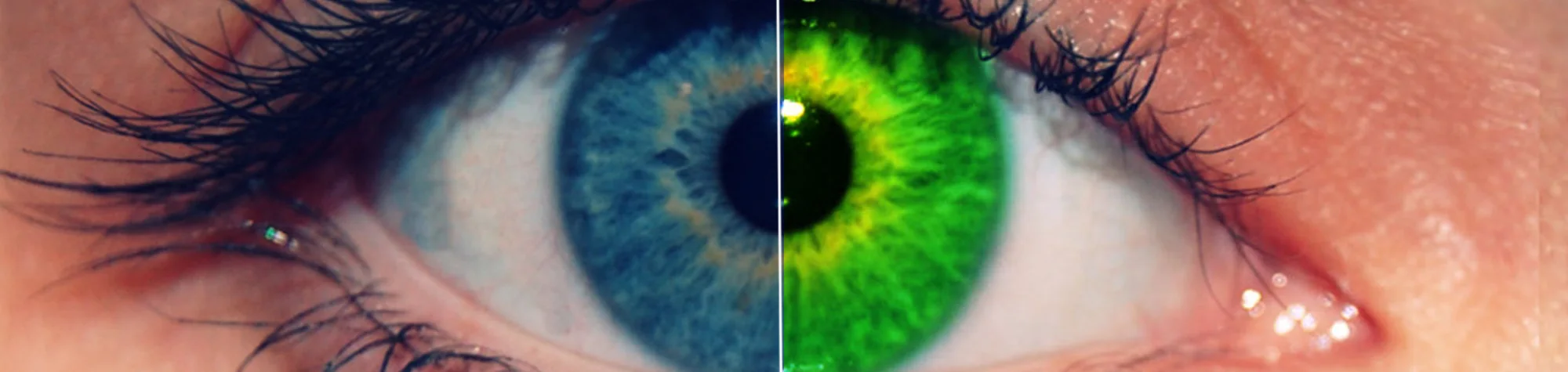
Change Eye Colour in Photoshop
Eyes can tell people a lot about a subject in a photo, which makes them one of the most important features to enhance. In Photoshop, you can easily change eye colour to improve realism, add a stylish touch, or create dramatic effects.
In this tutorial, you’ll learn how to change eye colour to anything you like. You can keep it natural for portraits or go bold and creative by turning your eyes bright colours or even giving yourself a demonic look. This effect works especially well on portrait photography.
Watch the Eye Colour Photoshop Tutorial
Watch the full tutorial below to see how to change eye colour step by step in Photoshop.
What You’ll Learn in This Tutorial
In this lesson, you will learn how to:
-
Change eye colour realistically in Photoshop
-
Select eyes accurately using simple tools
-
Apply colour without losing natural detail
-
Create dramatic or fantasy eye effects
-
Enhance portraits with subtle retouching
Who This Tutorial Is For
This tutorial is perfect for:
-
Photoshop beginners
-
Portrait photographers
-
Retouchers and digital artists
-
Anyone wanting creative portrait effects
Where You Can Use This Effect
Eye colour effects work great for:
-
Portrait photography
-
Creative and fantasy images
-
Social media profile photos
-
Before-and-after retouching projects
Professional Photoshop Editing Services
If you want professionally retouched portraits or custom eye effects applied to your photos, I offer Photoshop editing services for individuals and businesses.
Attribution and Licensing
freeimages.com/Aker: http://www.freeimages.com/photo/niki-s-nice-eye-1440621
freeimages.com/lcrumling: http://www.freeimages.com/photo/eye-1428130
Background Music: Sovereign Kevin MacLeod (incompetech.com). Licensed under Creative Commons: By Attribution 3.0 License http://creativecommons.org/licenses/by/3.0/
Subscribe for More Photoshop Tutorials
Subscribe to my YouTube channel for more Photoshop tutorials, portrait retouching techniques, and creative photo effects.